Send selected text, links, and images from any webpage directly to Discord channels.
Installation
- Clone or download this repo
- Open Chrome/Edge → go to
chrome://extensions(oredge://extensions) - Enable Developer mode (top right toggle)
- Click Load unpacked → select this folder
- Pin the extension icon to your toolbar
Setup
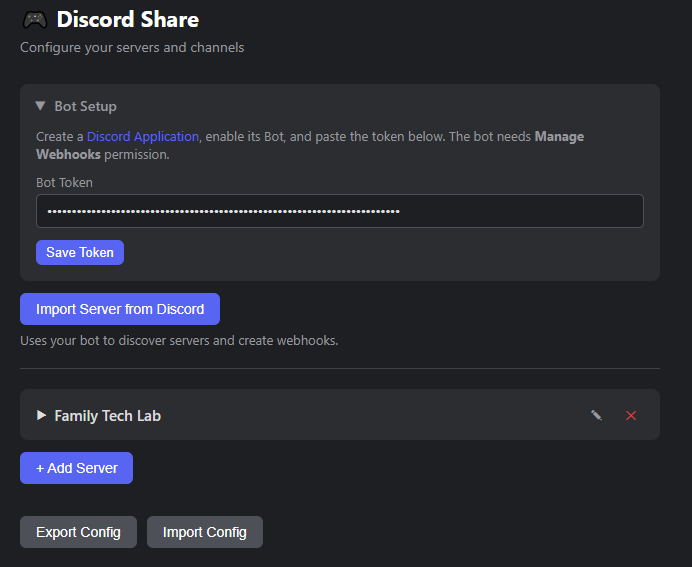
- Click the extension icon → click ⚙ (or right-click extension icon → Options)
- Click + Add Server → enter a name for your Discord server
- Click + Add Channel → enter the channel name and paste the Discord webhook URL
Getting a Webhook URL
- Open Discord → Server Settings → Integrations → Webhooks
- Click New Webhook → choose a channel → copy the webhook URL
- Paste it into the extension’s channel settings
Usage
Toolbar popup: Click the extension icon on any page to send the current page (or active text selection) to a channel.
Right-click menu: Select text, right-click a link, or right-click an image → “Send to Discord” → pick a channel → add an optional note → Send.
What Gets Sent
| Content | Discord Format |
|---|---|
| Text selection | Code block + page title + URL |
| Link / page | Rich embed with title + URL |
| Image | Embedded image preview |
