A Windows companion app for Claude Code CLI that displays real-time AI activity in your system tray and floating overlay. Built entirely with [Claude Code]
Features
- System Tray Integration – Always-visible status indicator with color-coded activity and dirty-check caching
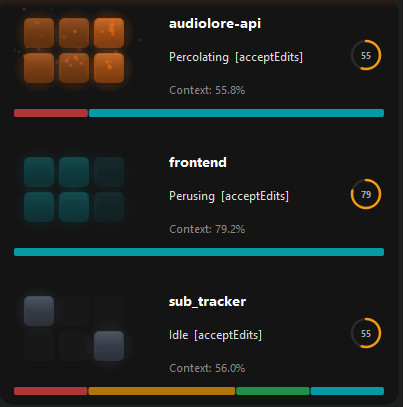
- Floating Overlay Window – Animated activity display with session cards, fade-in/out transitions, and draggable positioning with bounds-checking
- Real-time Activity Tracking – See what Claude is doing (Reading, Writing, Executing, etc.)
- “Thinking” State – Shows fun verbs (Pondering, Noodling, Percolating…) between tool calls instead of flashing idle
- Timeline Strip – Recent tool history shown as colored blocks on each session card
- Attention Levels – Configurable opacity ranges (peripheral/ambient/focal/urgent) per activity category
- Duration Evolution – Animations gradually slow down for long-running tools (normal -> extended -> long -> stuck)
- Context Progress Bar – Threshold-colored bar (green/amber/red) showing context window usage with cached token support
- Permission Mode Badge – Shows current permission mode (plan, acceptEdits, etc.) in overlay status
- Notification Balloons – Tray balloon notifications for Claude Code notification events
- Webhook Notifications – Discord/Slack webhook support for errors, attention requests, and session end events
- Sound Cues – Optional audio alerts for ambient event awareness
- Session Management – Pin/unpin sessions for persistent display
- Click-to-Focus – Click a session card to bring its terminal window to the foreground
- Mini Mode – Compact single-line session cards for minimal screen footprint
- Multi-Monitor Support – Choose which monitor to display the overlay on
- Per-Project Accent Colors – Assign distinct colors to different projects
- Theme Presets – Dark and Light theme modes
- Global Hotkey – Configurable keyboard shortcut to toggle the overlay
- Session Statistics – Track tool counts and category time per session
- Settings Dialog – Dark-themed settings with 7 tabs and live preview
- Semantic Design System – Color-coded activities with glow, particles, and smooth animations
- Status API – `/status` endpoint returning real-time session data as JSON
- Test Suite – Unit tests covering state management, settings, notifications, and more
Installation
Requirements
- Windows 10/11 or Windows Server 2019+
- Python 3.8 or higher
- Claude Code CLI installed
Setup
1. Install Python dependencies:
pip install -r requirements.txtCode language: CSS (css)2. Run the application:
python src/main.pyCode language: Bash (bash)3. Install Claude Code hooks:
– Right-click the system tray icon
– Select “Setup Hooks” (or open Settings > Hooks tab)
– This will configure Claude Code to send events to the Windows app
Usage
System Tray:
The app runs in your system tray and shows:
- Icon Color – Current activity type (orange=thinking, cyan=reading, green=writing, etc.)
- Category Letter – First letter of the activity category on the icon (configurable)
- Tooltip – Current tool and project info
- Context Menu – Access settings, overlay toggle, and setup
Overlay Window:
The floating overlay shows detailed activity:
- Session Cards – One card per active Claude session
- Activity Indicator – 3×2 grid animation showing current pattern
- Project Info – Current project name and working directory
- Tool Status – What Claude is currently doing
Controls:
- Double-click tray icon – Show/hide overlay
- Drag overlay – Reposition the window (stays in place across updates, clamped to screen edges)
- Right-click tray – Access menu
- Reset Position – Right-click tray menu option to snap overlay back to configured corner
Activity Colors
The app uses a semantic color system:
- Cyan (Observe) – Reading, searching (Read, Glob, Grep)
- Orange (Think) – Processing, reasoning (also used for “Thinking” grace period between tools)
- Green (Create) – Writing new files (Write)
- Amber (Transform) – Editing existing files (Edit)
- Red (Execute) – Running commands (Bash)
- Violet (Connect) – External APIs, web (WebFetch, WebSearch)
- Blue (Interact) – Needs attention (AskUserQuestion)
- Gray (Idle) – No current activity
